

How to upgrade from Talk2M free to Talk2M light or pro and add Ewon routers

When Talk2M free is no longer enough
Not sure whether to choose Talk2M light or Talk2M pro? But you already know that your Talk2M free account is no longer enough for you, for example because:
- you have not added a new Ewon router to it for more than a year,
- you need to connect to multiple Ewon routers at the same time,
- you want to create groups of routers and assign users to them, including access rights,
- your allocated monthly data volume is not enough.
This guide will show you:
- how to upgrade your existing Talk2M free account to Talk2M light or Talk2M pro,
- how to import Ewon devices from one or more Talk2M free accounts into the upgraded account,
- a tip on how to easily merge multiple Ewon devices from separate accounts into one Talk2M light account using a feature available in a Talk2M pro account,
- how to create a group of routers in the upgraded account and assign users to it, including access rights.
Note: To order the Talk2M light service, Talk2M pro service or additional credits, we will need your Talk2M account details – Account name and Account reference.
- Account name is the name of your Talk2M account, for example ABC Company.
- Account reference is the unique reference number of your Talk2M account, generated when the account was created, for example 1234/12345/12345-12.
You can find both details in the header of the eCatcher application.

Switch from Talk2M free to Talk2M light or Talk2M pro
Select one of your Talk2M free accounts or create a new Talk2M free account. We recommend creating a new Talk2M free account and then upgrading it to Talk2M light or Talk2M pro.
Important: Only the Talk2M account administrator can request an upgrade to Talk2M light or Talk2M pro.
1. In the eCatcher application, use your login details (account name, username and password) to log in to your Talk2M free account.

2. In the left menu, select the Account tab. This is where you will find all details of your Talk2M account.

3. Go to the Credit & Contract section.
To learn more about the benefits of Talk2M pro, click Learn more about Talk2M pro or Talk2M FAQ at the bottom of the Credit & Contract section before submitting your upgrade request.
4. To upgrade your Talk2M free* account to the light/pro version, click the Request Talk2M Pro button.

*Talk2M free includes a monthly data volume (VPN Traffic) of 3 GB and a DataMailbox service with 5 million values per month.
5. The upgrade wizard pop-up window will guide you through several steps:
a. Check that your account information is correct and click Next.

b. Check that your contact details are up to date, select My contacts are up to date and click Next.

c. Accept the Terms of Service and click Upgrade to Pro to upgrade your account to a higher version (light or pro).

d. The final window will open, showing information about the successful upgrade to the Talk2M pro version (also applies to the light version).

6. Your Talk2M light or Talk2M pro account will become active after the invoice has been paid. If you use the trial version, a 3-month free trial period will start. Before logging in for the first time, restart eCatcher.
Contact persons for managing your Talk2M account will receive a monthly account statement containing the credit balance and information about monthly activity on your account. This list can be updated in the Account tab in the Contacts section.
7. After the final step of the upgrade wizard to Talk2M pro, you will receive a confirmation email.

8. Please forward the confirmation email and information on whether you want to activate the light or pro version to sales@foxon.eu. We need the details listed in the email:
- Account reference
- Account name
We will then send you an invoice and arrange the activation of your Talk2M light or Talk2M pro account.
The next step differs depending on whether you are switching to a Talk2M pro or Talk2M light account.
Adding Ewon routers to the upgraded account
Adding Ewon routers to a Talk2M pro account
Note: This operation does not require any local or remote access to the Ewon routers.
Once you have completed the switch to a Talk2M pro account, you can start importing Ewon routers from your existing Talk2M free accounts. In the eCatcher application, click Account → Advanced settings → Import all Ewons wizard. This opens the Ewon device import wizard.

Adding Ewon routers to a Talk2M light account
1. Removing Ewon routers from the existing free account:
- Log in to your Talk2M free account.
- In the eCatcher application, click Ewons and select the router you want to remove.
- Click Delete in the toolbar.

2. Adding Ewon routers to the upgraded light account:
- Log in to your upgraded Talk2M light account.
- In the eCatcher application, click Add to add a new router.
- Follow the wizard instructions to add the new Ewon router to the account.
Note: This manual procedure requires local access to the Ewon router.
Merging multiple devices from different accounts into one Talk2M light account
TIP: If you have multiple devices in separate free accounts and want to use them under one light account:
- Activate a free Talk2M pro trial account (provided you have not already had a Talk2M pro trial account before).
- The Talk2M pro account includes a feature that lets you transfer Ewon routers from other accounts: https://help.ewon.biz/ecatcher/help/en/how-to-manage-several-free-accounts-.html.
- Once the Ewons have been transferred into one account, request a light account (see the procedure above).
More information is available on the eCatcher online help page.
How to import routers into a group
Note: This functionality is available only for the Talk2M pro version.
In the Ewon router import wizard, you will be asked to select or create a group into which the Ewon devices will be moved. This function allows you to group Ewon routers for clearer administration and assign them specific user rights at the same time.

We recommend creating a separate Ewon router group for each imported Talk2M free account. This will help you easily identify and sort your Ewons in the eCatcher application, especially if the routers use the same names in each Talk2M free account.
Imported Ewons with the same name as existing Ewons in the Talk2M pro account are automatically renamed. For example, if you import an Ewon named “My Ewon” and an Ewon with the same name already exists in the target Talk2M pro account, the imported Ewon will be renamed “My Ewon (2)”.
More information is available on the eCatcher online help page.
Create users and their access rights
After importing all Ewon devices from Talk2M free accounts, you can start creating users and user groups so that you can assign the appropriate access rights to the Ewon router groups. We recommend creating user groups first and users afterwards. Creating user groups is available only for the Talk2M pro version.
More information is available in the eCatcher online help:
Question or Inquiry
Highlighted items are mandatory.
Recommended products9
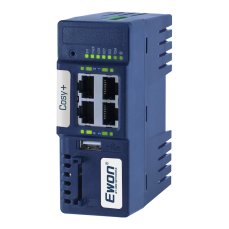
Ewon Cosy+ Ethernet router
705,43 EUR Incl. VAT

Talk2M Light
580,80 EUR Incl. VAT
Talk2M pro
1 089 EUR Incl. VAT
Talk2M Free
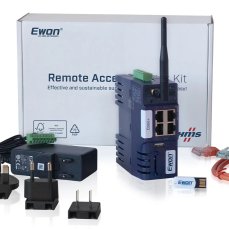
Ewon Cosy+ Starter Kit
487,63 EUR Incl. VAT
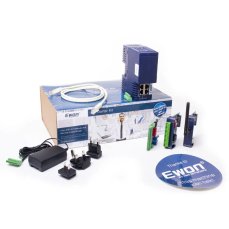
Ewon Flexy 205 - Starter Kit
597,74 EUR Incl. VAT
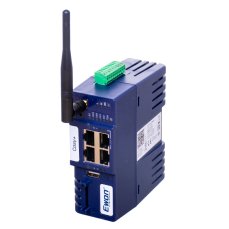
Ewon Cosy+ WiFi / Ethernet router
817,96 EUR Incl. VAT
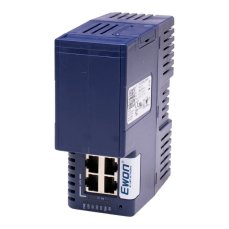
Ewon Flexy 205 router
951,06 EUR Incl. VAT
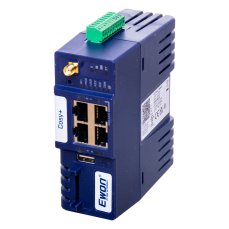
Ewon Cosy+ 4G LTE EU / Ethernet router
982,52 EUR Incl. VAT