

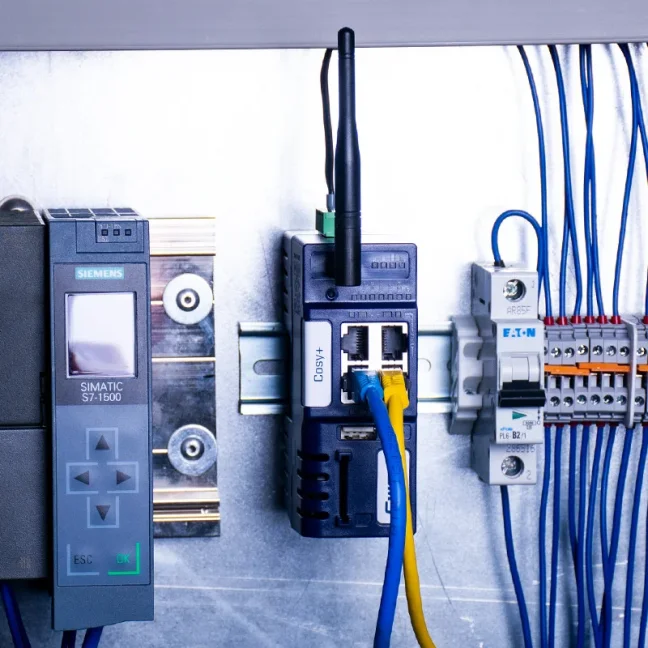


Ewon Cosy+ Starter Kit

A starter kit for trying out remote management of PLCs, HMIs and PCs using the Ewon Cosy+ router. The router connects to the Talk2M service via a Wi-Fi network or a fixed WAN Ethernet connection. The kit is available at a discounted price to new Ewon router customers only. More
Code: STKEC7133J
A starter kit for trying out remote management of PLCs, HMIs and PCs using the Ewon Cosy+ router. The router connects to the Talk2M service via a Wi-Fi network or a fixed WAN Ethernet connection. The kit is available at a discounted price to new Ewon router customers only. More
Code: STKEC7133J
Ewon Cosy+ Starter Kit
Try remote servicing with Cosy+ WiFi
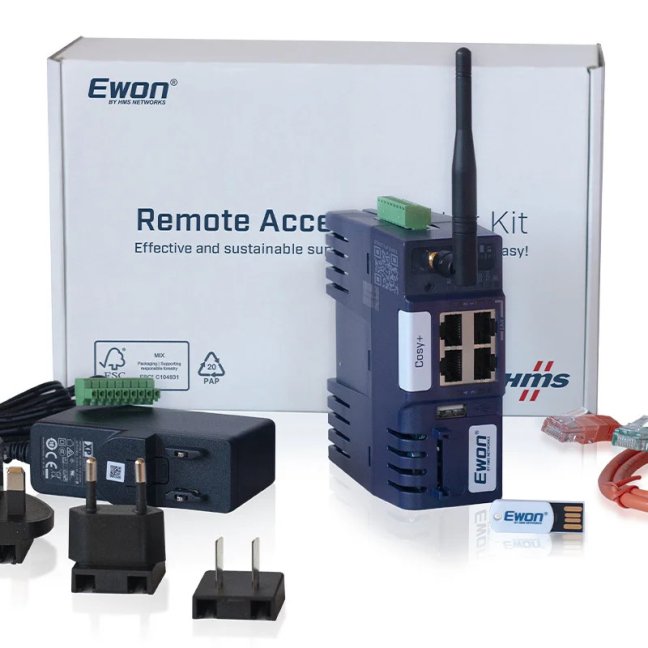
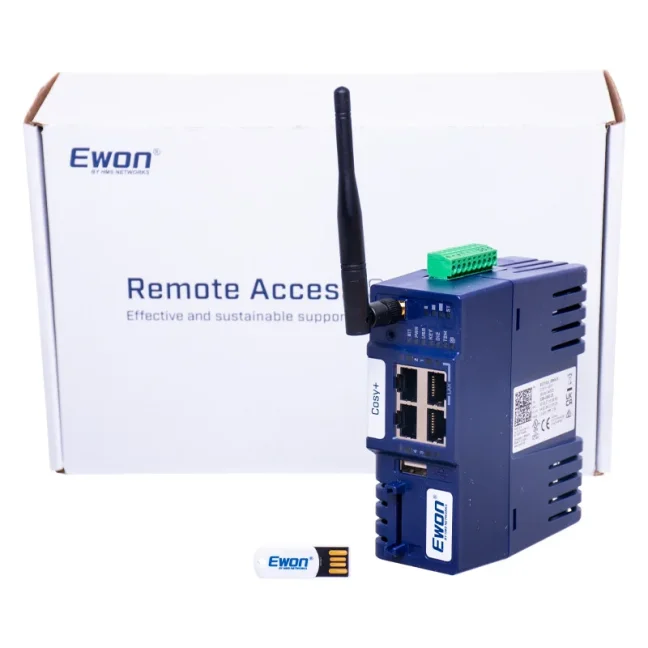
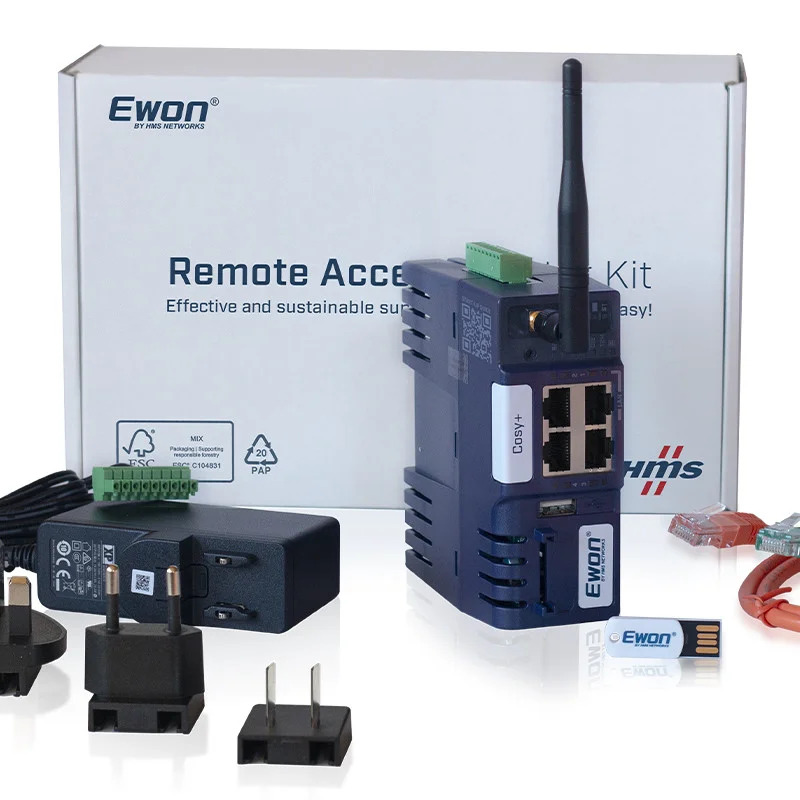
Starter kit for setting up remote access to a machine for the first time. It contains a Cosy+ WiFi router, an antenna, a power supply, cables and commissioning tools.
Are you proposing a remote machine maintenance service?
We can help you check the contents of the kit, connect to the PLC and complete your initial registration with Talk2M.
Remote servicing of PLCs and HMIs
The STKEC7133J kit includes a Cosy+ WiFi router for remote device management. Once connected via eCatcher, standard programming or diagnostic software can be used in much the same way as when connected directly to the machine’s Ethernet network. The settings for addresses, routing, permissions and intervention conditions must correspond to the specific PLC and its operation.
- The machine manufacturer can check the PLC programme or HMI parameters without having to visit the site immediately.
- A service engineer will carry out diagnostics, a backup or an authorised modification to the device remotely.
- Maintenance will only make the selected machine accessible for the duration of the service call.
Cosy+ is primarily used as a means of remote servicing. If you also require standalone data acquisition from a PLC, historical data logging, alarms or an OPC UA server, select Ewon Flexy 205.
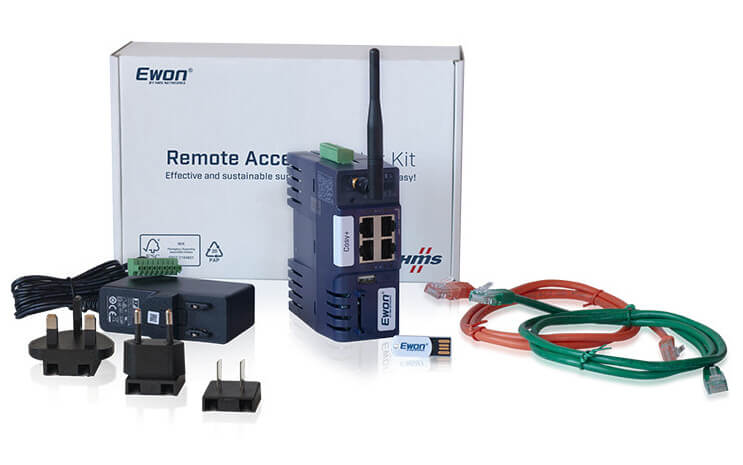
Contents of the STKEC7133J kit
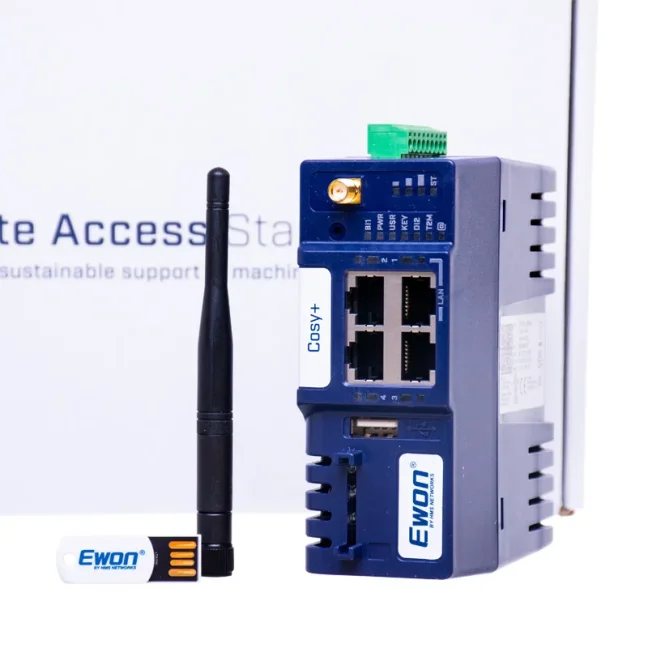
- Router Ewon Cosy+ WiFi and a Wi-Fi antenna.
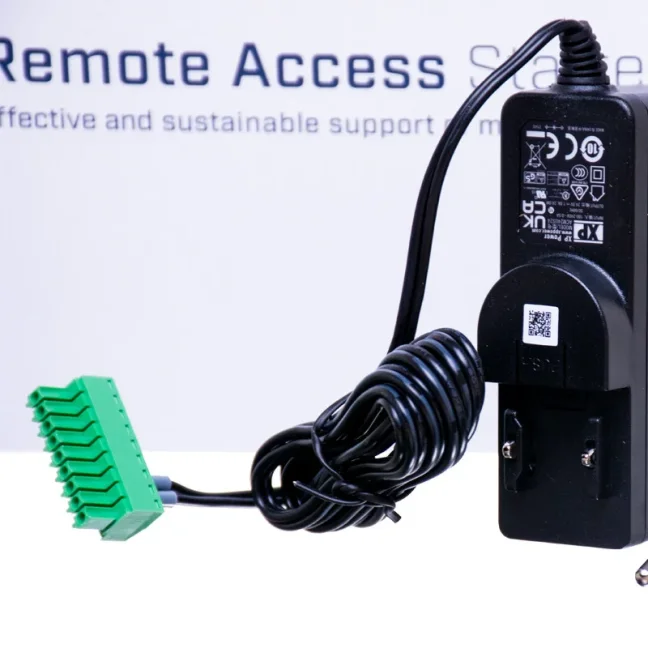
- Power supply unit with EU, UK and US adaptors and a power connector.
- Two 1-metre-long Ethernet cables, one green and one orange.
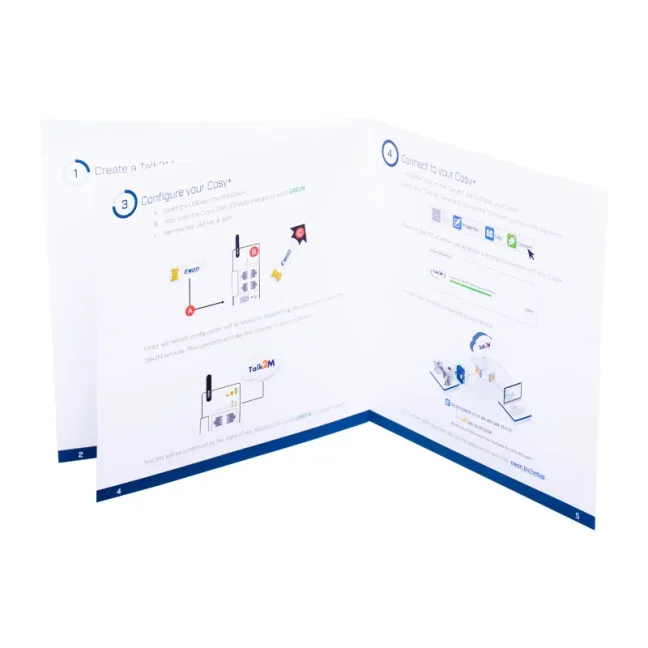
- USB stick, printed quick start guide and shipping box.
You can connect your own PLC or other supported device to the kit. Neither the PLC nor the PLC programming software are included in the package.
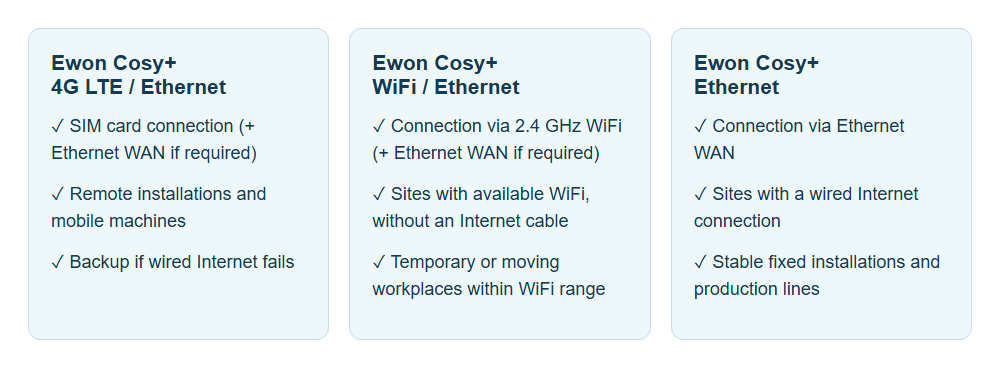
Connection to the internet and the machine network
To access the internet, use an available Wi-Fi network in client mode or a wired Ethernet WAN connection. The router does not have a mobile modem and does not work with a SIM card. Wi-Fi access point mode is used for local wireless access, depending on the device settings.
Four RJ45 ports support 10/100 Mb/s Ethernet. Port 1 is always LAN; the roles of the other ports are configured according to the wiring. In the default configuration, there are three LAN ports and one WAN port. The device’s LAN and the internet WAN have different network roles; plan their addressing with your network administrator.
Managed service access and security
The connection to Talk2M uses an encrypted OpenVPN tunnel, SSL/TLS and X.509 certificates. The machine LAN and the network used for the internet have separate roles. Set access rules according to the devices and maintenance tasks that are actually required.
The Cosy+ range includes a Secure Element hardware security feature to protect device identity. When designing access, also take into account regular firmware updates and user account security.
- Enable multi-factor authentication for accounts used for remote access.
- Access can be established via a digital input and a DIP switch in the control cabinet. The digital output can be configured to indicate a connection.
- Set the scope of user permissions and connection logs according to your chosen Talk2M tariff.
- Separate service communications from other networks and agree on the rules with your local IT administrator.
Documentation for access approval, network design and secure connections is available in the support overview below the product description.
Remote connection via Talk2M
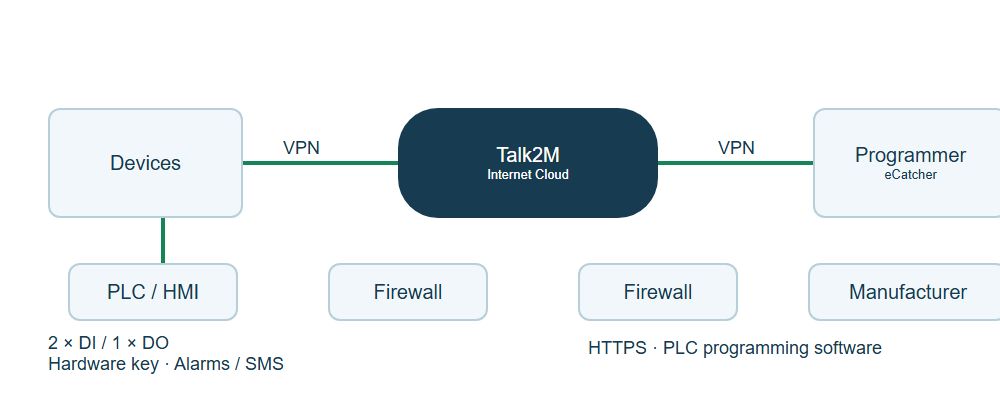
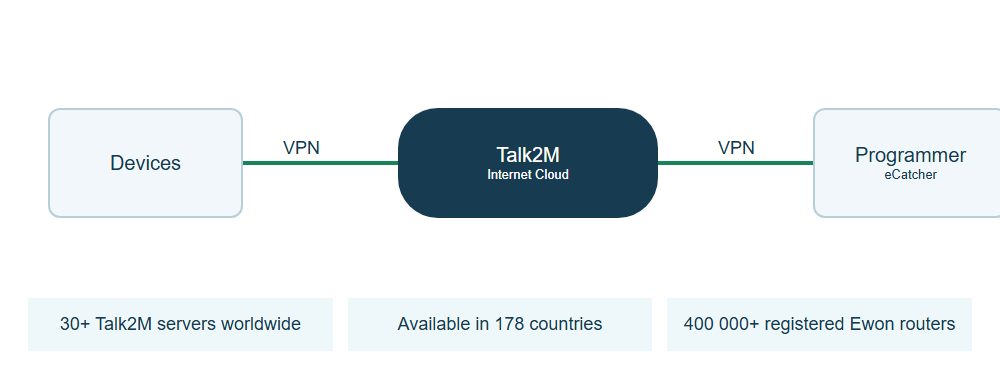
Talk2M connects the router in the machine to an authorised service technician. The router establishes an outbound connection to the service; the technician logs into the eCatcher app and opens a VPN session. M2Web can be used for the device’s web interfaces. Neither a public IP address nor port forwarding of incoming ports to the PLC is required. However, outbound communication must be authorised by the network administrator.
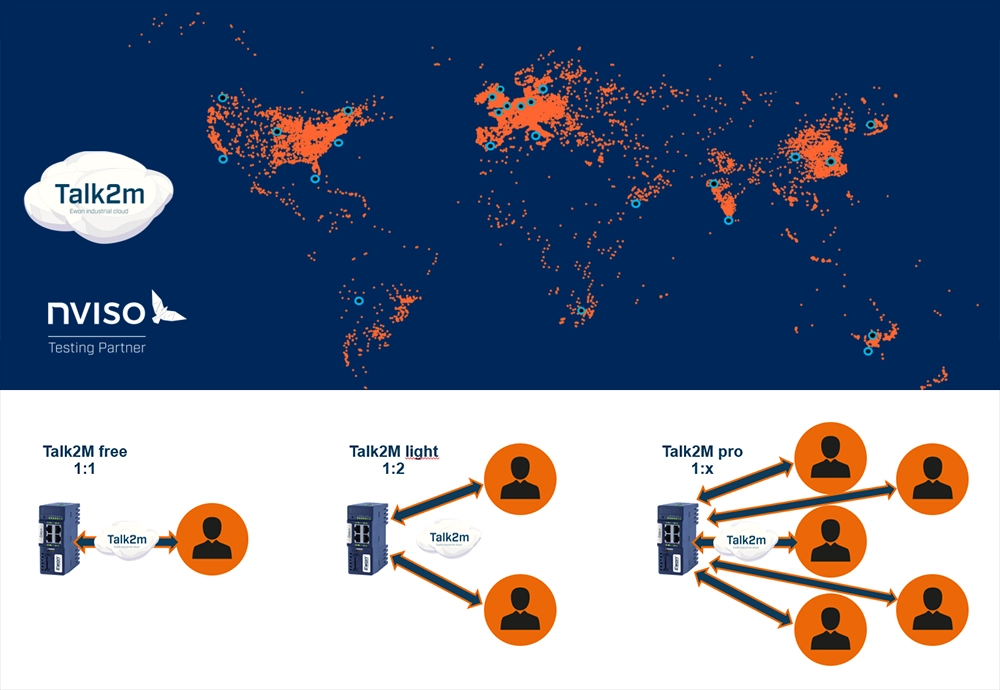
| Talk2M Free | 1 concurrent VPN session per account; a 12-month free period from the last registration of a previously unregistered Ewon router. |
|---|---|
| Talk2M Light | 2 simultaneous VPN sessions per account; a paid plan for smaller service teams. |
| Talk2M Pro | 5 simultaneous VPN connections in the basic tariff, with the option to upgrade; advanced user and access management. |
The figures given apply to simultaneously open VPN sessions across the entire account. They do not limit the number of registered routers or users. Re-registering a router that is already in use does not renew the free period. Transfer limits, data services and the scope of management are governed by the selected tariff.
We can help you choose the right service Talk2M overview for Ewon.
Settings, software and documentation
The initial configuration takes place via the router’s web interface: you set up the machine LAN, the internet connection and registration with Talk2M. The LAN and WAN must have correctly configured addressing. Before deployment at the customer’s site, verify access to the PLC and the permissions of individual technicians.
- eBuddy It searches for a router on the local network and helps with address management, backups or device restoration.
- eCatcher is used to log in to Talk2M and establish a remote VPN connection.
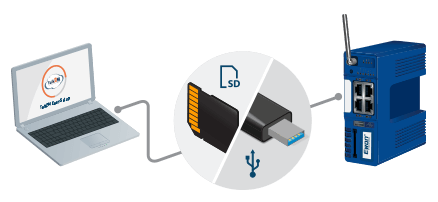
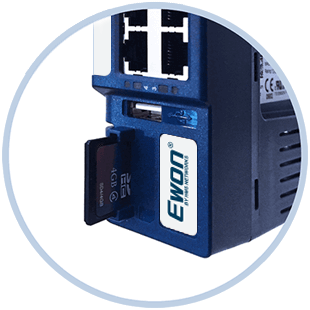
- SD card or USB storage device This will simplify the backup and transfer of the configuration in accordance with the procedure for Cosy+.
You can find the latest manuals and installation programmes for this specific product in the ‘Downloads’ tab. Select the correct firmware for your model: Cosy+ and Flexy use different packages. Create a backup before updating and follow the manufacturer’s instructions.
Examples of setting up and using Cosy+
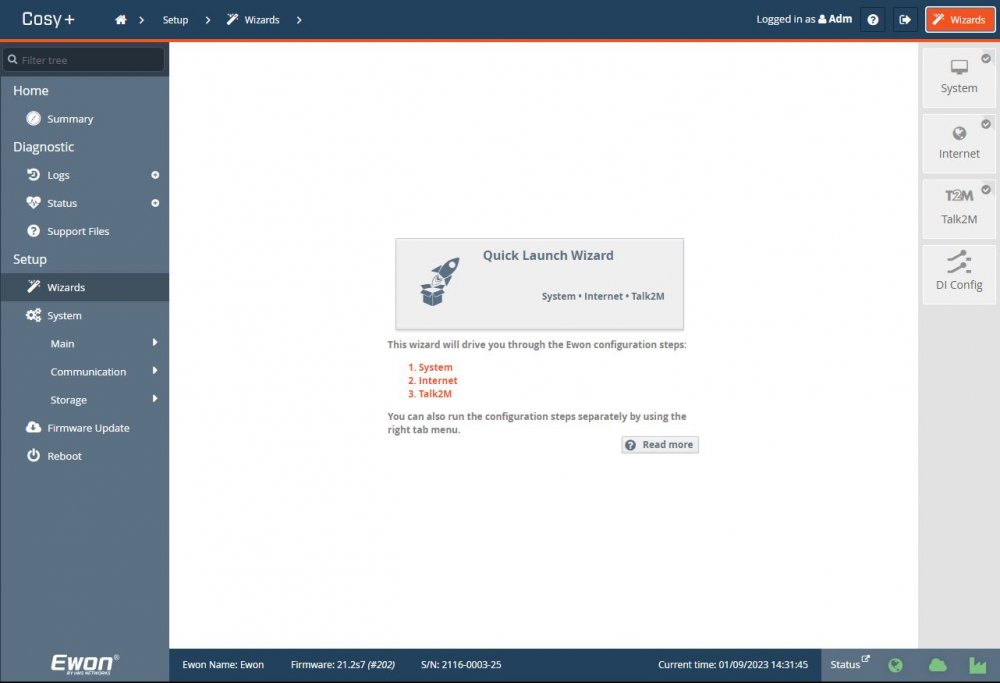
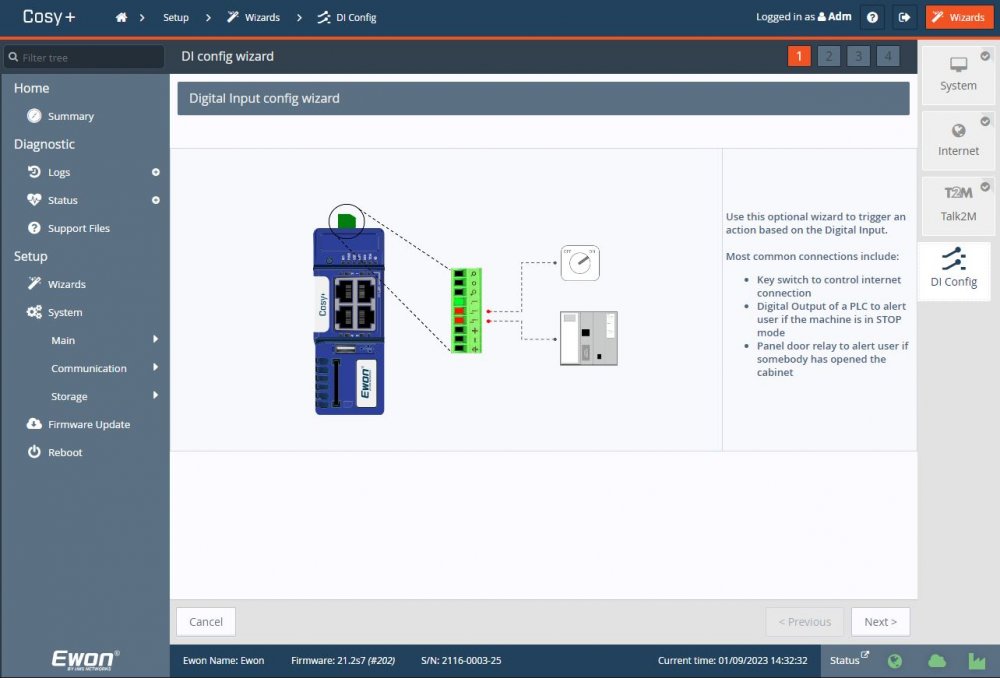
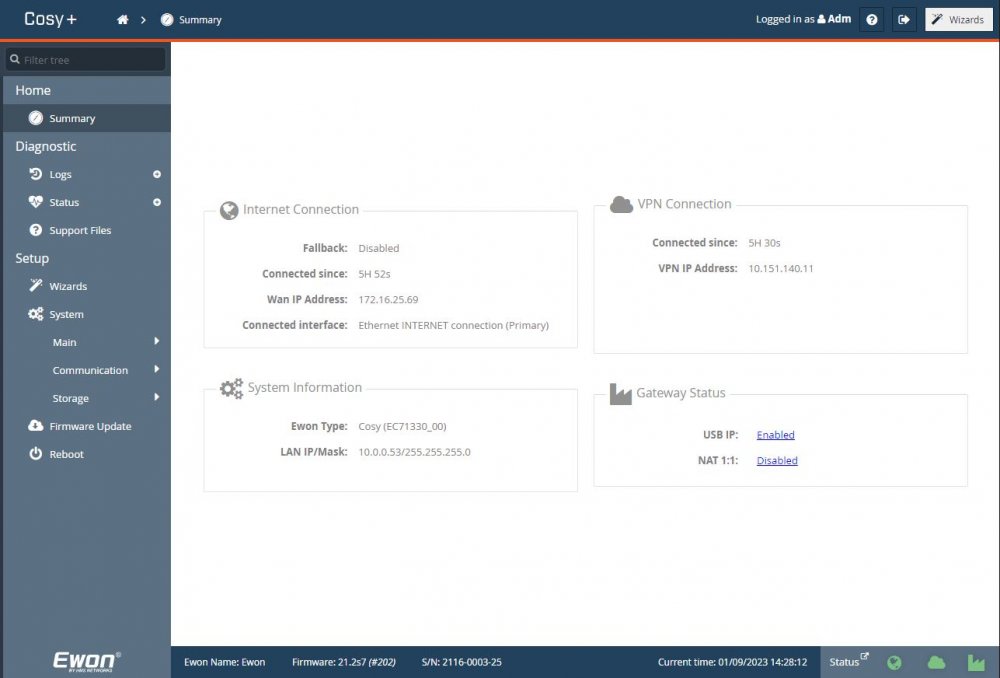
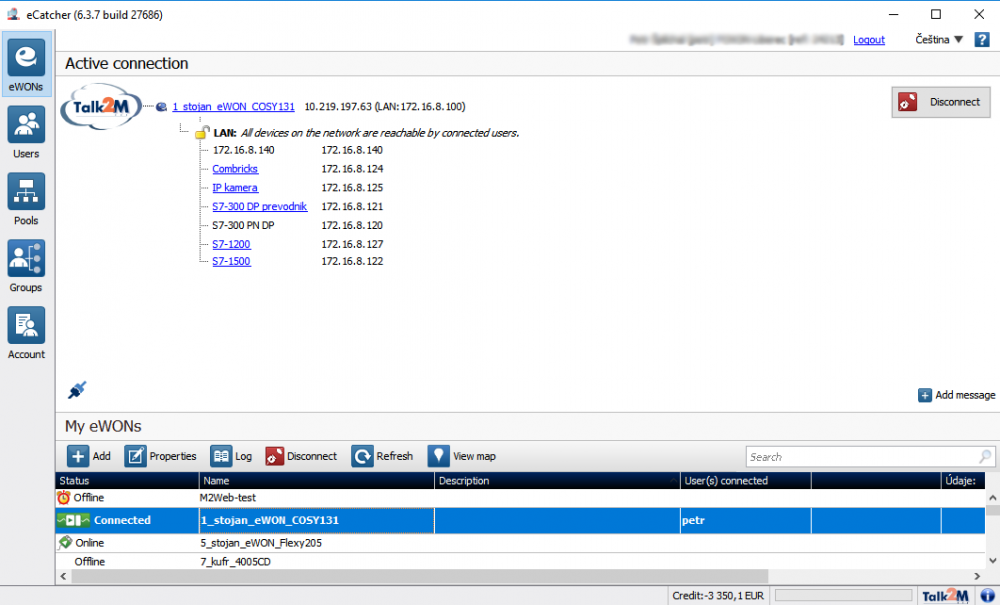
The screenshots illustrate the setup process. The appearance of the interface varies depending on the firmware and software version.
Technical specifications of the Ewon Cosy+ Starter Kit
| Order number | STKEC7133J |
|---|---|
| Purpose | Starter kit with Ewon Cosy+ WiFi router |
| Ethernet | 4× RJ45, 10/100 Mb/s; configurable LAN/WAN, port 1 is always LAN |
| Wireless connection | WiFi client or access point; Ethernet WAN as a wired alternative |
| Wi-Fi antenna | RP-SMA; the antenna is included in the package |
| Router inputs and outputs | 2× digital inputs; 1× open-drain MOSFET output, 200 mA, 1.5 kV isolation |
| VPN and device identity | OpenVPN, SSL/TLS, X.509; hardware Secure Element |
| Router power supply | 12-24 VDC ±20 %, LPS; 9-pin connector |
| Router installation | DIN rail, bracket included; wall mounting also available |
| Operating temperature of the router | -25 to +60 °C |
| Router storage temperature | -30 to +70 °C |
| Relative humidity | 10 to 95 per cent, non-condensing |
| Manufacturer’s warranty for the router | 3 years |
Frequently Asked Questions
Do I need a public IP address?
No. The router establishes an outgoing connection to Talk2M. However, the necessary outgoing traffic must be permitted on the firewall.
Does the package include a mobile data plan?
No. The kit contains the Cosy+ WiFi, which you connect via WiFi or Ethernet WAN. A mobile modem or SIM card is not included.
Is it possible to connect to a Siemens PLC via TIA Portal?
Yes, with the appropriate network settings and permissions, you can use programming tools for PLCs connected to the machine’s Ethernet LAN. Access to MPI or PROFIBUS requires a separate, compatible adapter.
What happens in the event of an internet outage?
Remote service is not available. The router does not replace the machine’s control system; address communication restoration and operational rules in the application design.
Does remote access have to be enabled permanently?
No. The connection can be controlled via a digital input, such as an operator key switch, and by configuring user permissions.
Does Cosy+ store a history of process values?
For independent data collection and archiving from PLCs, alarms and data connections, choose the Flexy 205. The Cosy+ is designed for remote service access.
Select the wiring configuration for your machine
Please specify the type of PLC or HMI, the available internet connection and the number of technicians who will be accessing the machines. We will help you choose a starter kit and verify the initial connection.
Enquire about a solutionManuals, safety information and IT documentation
Prepare the first connection and approval of remote access. The support overview includes FOXON guides and documentation for network administrators.
Features of the Ewon Cosy+ Starter Kit
Specifications and scope of supply for order number STKEC7133J. The set includes the router and the accessories listed below.
Technical specifications
| Order number | STKEC7133J |
|---|---|
| Purpose | Starter kit with Ewon Cosy+ WiFi router |
| Ethernet | 4× RJ45, 10/100 Mb/s; configurable LAN/WAN, port 1 is always LAN |
| Wireless connection | WiFi client or access point; Ethernet WAN as a wired alternative |
| Wi-Fi antenna | RP-SMA; the antenna is included in the package |
| Router inputs and outputs | 2× digital inputs; 1× open-drain MOSFET output, 200 mA, 1.5 kV isolation |
| VPN and device identity | OpenVPN, SSL/TLS, X.509; hardware Secure Element |
| Router power supply | 12-24 VDC ±20 %, LPS; 9-pin connector |
| Router installation | DIN rail, bracket included; wall mounting also available |
| Operating temperature of the router | -25 to +60 °C |
| Router storage temperature | -30 to +70 °C |
| Relative humidity | 10 to 95 per cent, non-condensing |
| Manufacturer’s warranty for the router | 3 years |
| SD card | For backup, commissioning and service procedures, refer to the Cosy+ manual. |
Remote service and limitations of use
Cosy+ provides VPN access to devices on the machine’s Ethernet network. It does not include Flexy’s data functions for independent reading of PLC tags, process historisation or the OPC UA server. Please verify the suitability of remote access for the specific device, its software and network settings.
| Service technician connection | eCatcher and Talk2M account; M2Web is also a supported web interface. |
|---|---|
| USB | USB 2.0 supports the service and remote USB functions as specified in the Cosy+ manual; USB device compatibility must be verified. |
| Local configuration | Built-in web interface, eBuddy for router search and service management. |
VPN, network and access management
| VPN connection | OpenVPN, SSL/TLS encryption and X.509 certificate authentication. The router establishes an outgoing connection to Talk2M. |
|---|---|
| Network functions | LAN/WAN separation, routing, NAT, IP filtering and DHCP according to configuration. Set up network access for the machine according to service requirements. |
| Consent to connection | The digital input can be used to enable service access, for example via a key switch. The digital output can be configured to indicate a connection. |
| User accounts | Multi-factor authentication and authorisation depending on account settings and the Talk2M tariff. |
| Talk2M tariffs | Free: 1, Light: 2, Pro: 5 simultaneous VPN connections in the basic tariff. This is an account limit, not the total number of registered routers or users. |
| Talk2M Free | A 12-month free period from the last registration of a router that has not yet been registered. Re-registering a previously used device does not renew this period. |
Contents of the package
- Ewon Cosy+ WiFi router and WiFi antenna.
- Power supply unit with EU, UK and US adaptors and a power connector.
- Two 1-metre-long Ethernet cables, one green and one orange.
- USB stick, printed quick start guide and shipping box.
Conditions of the introductory offer: A customer may only purchase the starter pack once.
Documentation and technical support
You can find manuals, firmware and tools for this product in the ‘Downloads’ tab. For initial set-up and to have access approved by the network administrator, use Guides and IT documentation.
FAQ: Ewon Cosy+ Starter Kit
Practical answers for this specific router or configuration.
Connection, operation and servicing
What is the Ewon Cosy+ Starter Kit designed for?
For remote servicing of PLCs, HMIs and other devices on the machine network via Talk2M. A technician can use supported programming or diagnostic software provided the network is correctly configured and the necessary permissions are in place.
Which router and which set of accessories does it contain?
STKEC7133J includes a Cosy+ WiFi router, a WiFi antenna, a power supply with EU/UK/US adaptors, two 1-metre Ethernet cables, a USB flash drive and a printed quick start guide. A detailed list can be found in the ‘Features’ tab.
Does the set include a 4G modem or a PLC?
No. The kit uses Cosy+ WiFi with an internet connection via WiFi or Ethernet WAN. The kit does not include a mobile modem, a SIM card or its own PLC.
Is there a limit on the number of starter kits?
Yes. A customer may only purchase this starter pack once.
Can Cosy+ collect and archive process data independently?
For direct reading of PLC tags, process historisation, alarms or an OPC UA server, choose Flexy. Transmitting OPC UA communication via a service VPN does not mean that Cosy+ is itself an OPC UA server.
Do I need a public IP address and incoming ports?
No. The router establishes an outbound connection to Talk2M, so neither a public IP address nor the forwarding of incoming ports to the PLC is required for this method of remote access.
What does the company network administrator need to enable?
The necessary outbound communication, DNS resolution and network services according to the current Talk2m guide. The exact destinations and ports are listed in the IT documentation.
What are eCatcher and eBuddy used for?
eCatcher is used to log in to Talk2M and establish a service VPN connection. eBuddy helps you locate a router on the local network, manage its address and carry out supported maintenance procedures.
Is Talk2M Free available without a time limit?
No. The free period lasts for 12 months from the last registration of a previously unregistered Ewon router. A newly registered device will renew the account period; re-registering a router that is already in use will not renew it. To continue using the service without re-registering, select a paid tariff.
How many technicians will be connected at the same time?
The basic plans offer 1 concurrent VPN session for Free, 2 for Light and 5 for Pro. The limit applies to the entire account. The total number of registered users and routers is not restricted by this figure; plans also differ in terms of data transfer limits and access management.
Can access only be granted during a service call?
Yes. The connection can be controlled via a digital input, such as an operator key switch. Set up user permissions and multi-factor authentication in Talk2M; the range of features depends on the tariff.
Will I be able to programme my PLC via VPN?
Check compatibility for the exact PLC type, programming software, addressing and permissions. When searching for devices, do not assume the same broadcast or multicast traffic as on a local network; it may be necessary to specify a destination IP address or adjust the routing.
What happens in the event of an internet outage?
The remote service session is not available. Restore your internet connection and check your Talk2M registration status. Cosy+ does not replace the machine’s local control system.
How do I update the firmware?
Use the package and procedure designed for Cosy+, such as eBuddy or the documented procedure using a storage device. Centralised cloud-based firmware management for Cosy+ is available on the Talk2M Pro plan. Before updating, create a backup and verify the recommended path between versions.
How to prepare documentation for technical support?
Please provide the exact model, firmware version, wiring diagram, status of indicator lights and error messages. Prepare diagnostic logs and a backup of the configuration.
Documentation and technical support
You can find manuals, firmware and tools for this product in the ‘Downloads’ tab. For initial set-up and to have access approved by the network administrator, use Guides and IT documentation.

From Practice: At De & Co, They Can Find a PROFINET Fault in Just a Few Minutes
De & Co Hranice s.r.o. supplies production lines and robotic workstations for various industrial sectors. As the company gradually moved from smaller machines to large automated lines, the complexity of its communication networks increased as well. This created a need to diagnose PROFINET and at the same time connect securely and remotely to equipment already operating at customer sites. What technologies help their technicians do that?
How to Meet NIS2 Requirements: Secure Remote Access with Ewon Routers and W&T Firewalls
The European NIS2 directive introduces new obligations for companies in protecting against cyber threats. Below, we compare these requirements with the technical measures in IEC 62443 and show how to meet them easily using Ewon industrial routers, the secure Talk2M cloud service, and firewalls from the German manufacturer W&T.
How to upgrade from Talk2M free to Talk2M light or pro and add Ewon routers
Do you use one or more Talk2M free accounts? Have you found that this solution is no longer enough and that you need Talk2M light or Talk2M pro? This guide will show you:
- how to upgrade your existing Talk2M free account to Talk2M light or Talk2M pro,
- how to import Ewon devices from one or more Talk2M free accounts into the upgraded account,
- how to create a group of routers in the upgraded account and assign users to it, including access rights.

The New LIGHT Account Type in Talk2M on Ewon Routers Is a Happy Medium
The Talk2M cloud service allows EWON router users to easily and securely connect to their devices/machines remotely via the Internet from anywhere in the world. Until now, two types of service have been available – Talk2M free and Talk2M pro. From 2 May 2024, a new, affordable account type – Talk2M light – will be available. In addition, the rules for the free account will change.

TALK2M Free, Light or Pro? Which service should you choose for Ewon devices, and why?
Do you use Ewon Cosy or Flexy routers for remote management and are you wondering which Talk2M remote access service is right for you? We’ve put together a few points to help you decide.

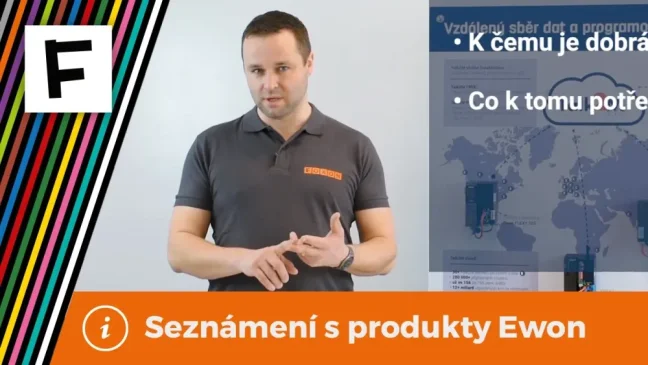
VIDEO guide to remote management of PLCs/HMIs/PCs via Ewon routers
Ewon industrial routers are rightly among the most widely used global solutions for the remote management of PLC control systems, robots, industrial computers and HMI panels via the Internet. Simply managing systems remotely is no longer enough, and Ewon routers are the only ones that can offer you so much more. They can read (and write) data from remote PLC control systems such as SIEMENS, Allen-Bradley, Mitsubishi, Omron, Schneider, Modbus and others. This data is sent via the Internet to your computer, where you can store it in a database and display it in visualisations or in Power BI reports. Find out more in our video guide.
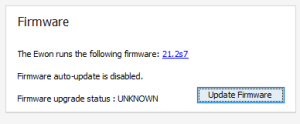
How to update the firmware on Ewon COSY and eWON Flexy routers
U We recommend that users of Ewon routers upgrade to the latest firmware version. Firmware updates are usually released to implement new features, security enhancements and use, or to rectify errors. We can upgrade the firmware in several ways and each of It is intended for a different situation.
Highlighted items are mandatory.
Talk2M pro
1 089 EUR Incl. VAT

Magnetic Wi-Fi antenna, 2.4 GHz, 3 dBi, SMA-RP female connector, 3 m cable
6,05 EUR Incl. VAT
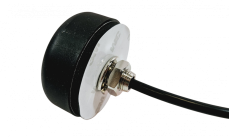
Wi-Fi antenna, 2.4/5 GHz, 5/6 dBi, SMA-RP female, 3 m cable, IP67
27,83 EUR Incl. VAT

Talk2M Light
580,80 EUR Incl. VAT
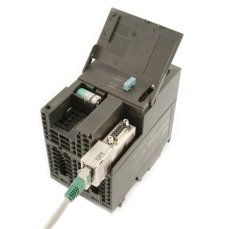
ACCON NetLink PRO Compact - Ethernet adapter for SIMATIC S7-200/ -300/-400
638,88 EUR Incl. VAT
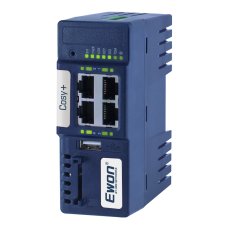
Ewon Cosy+ Ethernet router
705,43 EUR Incl. VAT
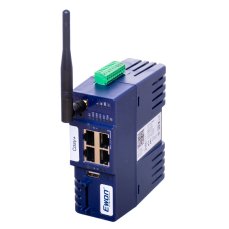
Ewon Cosy+ WiFi / Ethernet router
817,96 EUR Incl. VAT
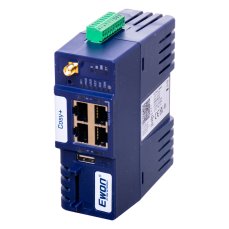
Ewon Cosy+ 4G LTE EU / Ethernet router
982,52 EUR Incl. VAT
Related products5
Talk2M pro
1 089 EUR Incl. VAT
Magnetic Wi-Fi antenna, 2.4 GHz, 3 dBi, SMA-RP female connector, 3 m cable
6,05 EUR Incl. VAT
Wi-Fi antenna, 2.4/5 GHz, 5/6 dBi, SMA-RP female, 3 m cable, IP67
27,83 EUR Incl. VAT
Talk2M Light
580,80 EUR Incl. VAT
ACCON NetLink PRO Compact - Ethernet adapter for SIMATIC S7-200/ -300/-400
638,88 EUR Incl. VAT
Alternatives3
Ewon Cosy+ Ethernet router
705,43 EUR Incl. VAT
Ewon Cosy+ WiFi / Ethernet router
817,96 EUR Incl. VAT
Ewon Cosy+ 4G LTE EU / Ethernet router
982,52 EUR Incl. VAT