

Remote access to Ewon routers from a web browser via M2Web
Need to check an HMI or open a PLC web page from your phone? M2Web makes supported device services available through the Talk2M cloud in a standard web browser. You do not install a VPN client on your computer, tablet or phone for this access.
Updated 30. 10. 2026 using documentation from HMS Networks / Ewon and Wachendorff Prozesstechnik.
Access to HMIs, web servers and remote desktops
M2Web works with an Ewon router connected to Talk2M. The browser connects to the portal via HTTPS; the Talk2M connection to Ewon and the service available on the target device in its LAN are then used. Typical uses include HMIs, PLC web pages, IP cameras and industrial PCs.
- HTTP / HTTPS: opening the device’s built-in web server. This also includes the available Ewon web interface and local visualisations, such as ViewON on Flexy.
- VNC: viewing and controlling an HMI or PC running a VNC server.
- RDP: remote desktop access to a computer or controller with a supported and enabled RDP server.
Simply connecting the device to Ewon is not enough. It must provide the selected service, and access to that service must be enabled.
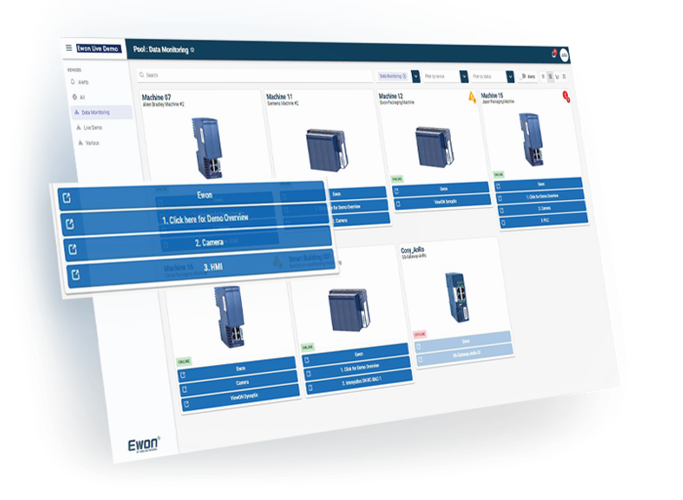
Machine overview and three quick links
In M2Web, choose the device, monitoring or map view, configure filters and save your preferred selection. Each Ewon card can display up to three quick links to LAN devices, such as an HMI, PLC and PC. Open other configured devices in the Ewon details.
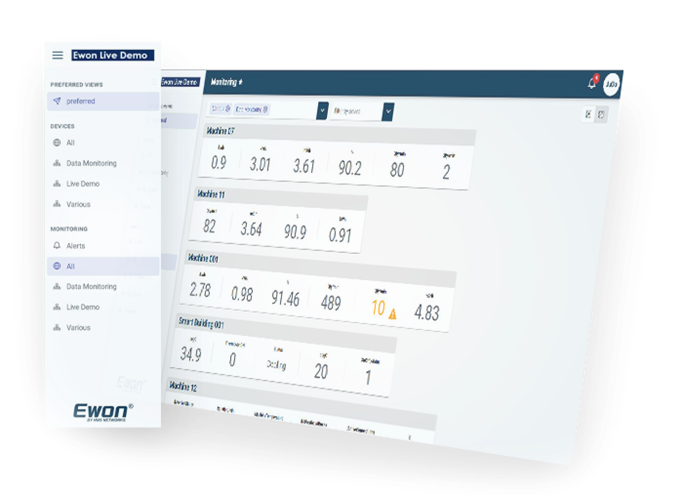
Up to six KPIs and alarm status from Ewon Flexy
An Ewon Flexy connected to Talk2M can make up to six selected variables (KPIs) available in M2Web. You can see their current values and associated alarm status. Flexy must first have variables and communication with the data source configured for this overview.
- In the Flexy web interface, open Setup > Main > Data Management, enable Live data and KPI's and save the settings.
- Under Values switch to setup mode and select up to six variables using Set selection as KPI. For a new variable, set KPI visibility when creating it.
- In M2Web, open the corresponding Flexy and check the values under Live tags.
HMS KPI setup instructions. Distinguish the Flexy KPI overview from remotely opening an HMI via a Cosy router.
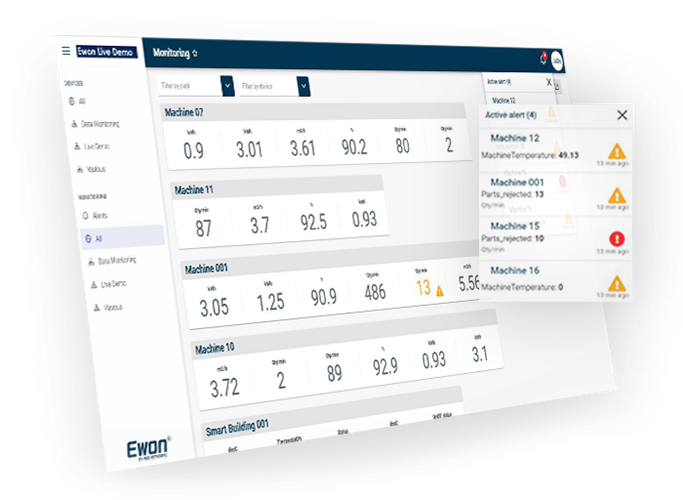
Signing in from a computer, tablet or phone
Open m2web.talk2m.com and sign in with the Talk2M account name, username and password. Enter a verification code if required by the user settings. Then select an available Ewon and the desired device.
M2Web also supports login verification using a code sent by email. The administrator manages this in Ecatcher 7.1.0 or later. Once enabled, users signing in with desktop Ecatcher must also use the corresponding version. Details are provided in the current HMS guide to email verification.
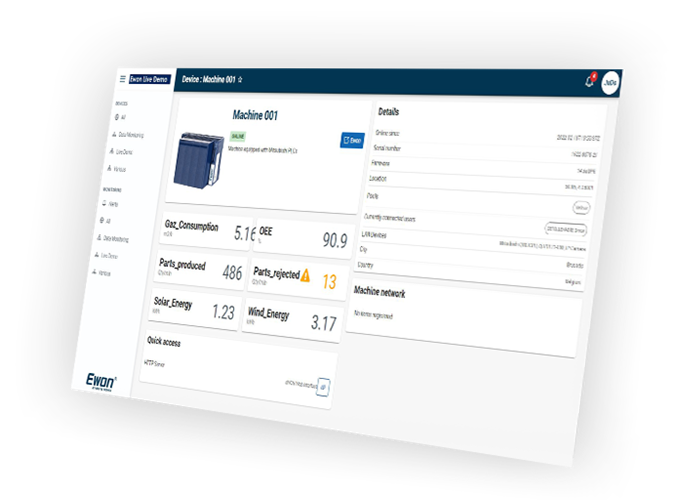
Machines on the map
The map view helps locate machines by their configured location and quickly check their status. It also shows alarm status for configured Flexy KPIs. It is an overview of account devices, not automatic tracking of their movement.
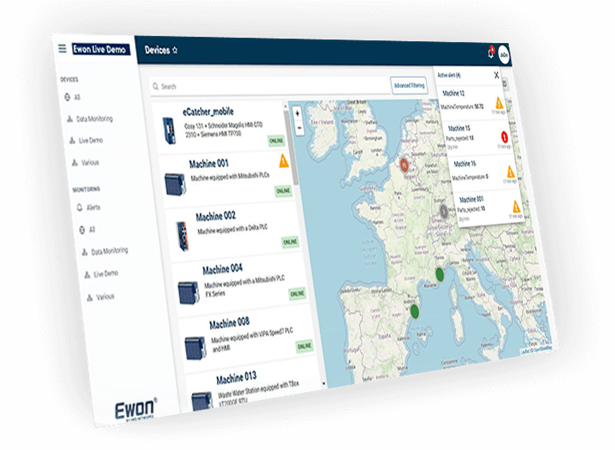
Making LAN devices available in Ecatcher
The administrator prepares the setup in Ecatcher. Ewon must be registered in the relevant Talk2M account and online.
- Select Ewon and open Properties > LAN & Firewall > Configure LAN Devices & Firewall.
- Add the target device using Add LAN Device, if it is not already listed. Check its LAN IP address.
- In its Properties enable Visible in M2Web and select HTTP, HTTPS, VNC or RDP according to the device service.
- Set the appropriate port, save the configuration and verify access in M2Web using the intended user’s account.
M2Web and VPN via Ecatcher
M2Web is suitable for web interfaces, HMIs and remote desktops using the protocols listed. Use the Ecatcher VPN client for a direct connection between programming software and a PLC. The browser does not provide your local program with a general network connection to the remote LAN. Running an application inside a remote PC via RDP is a different way of working.
The choice of tool is also explained in the manufacturer’s Talk2M service overview.
Talk2M availability and limits
M2Web is part of Talk2M without a separate M2Web licence. Its use is nevertheless governed by the plan and usage of the entire account.
| Plan | Concurrent M2Web + Ecatcher Mobile connections | Monthly VPN traffic |
|---|---|---|
| Free | 5 | Max. 3 GB |
| Light | 5 | Max. 5 GB |
| Pro | Unlimited | 20 GB as standard |
These counts apply to the account, not to each router individually. Desktop VPN connections via Ecatcher are counted separately. For Free and Light, reaching the limits restricts services until the end of the month, including M2Web access.
Under the manufacturer’s current terms, Talk2M Free is valid for 12 months; adding a newly purchased device starts another 12-month period. Details and the current service scope are available in the HMS plan comparison and in the plan and limit FAQs.
Checks for connection problems
- Device is not displayed: check Ewon status, user permissions and the Visible in M2Web option.
- HMI or PC does not open: verify the LAN IP address, protocol, port and availability of the web, VNC or RDP server on the local network.
- Access stopped working for the entire account: check the plan, its validity and exhausted allowances.
- HTTP 404 error with an HMI: HMS also describes a case involving an incorrect value containing localhost in the Home page field. The specific procedure is described in the HMS guide for this error.
Help with M2Web access
Send us the Ewon type, firmware version, target HMI or PC type, selected protocol and exact error message. For KPIs, tell us which Flexy values you want to monitor.
Contact FOXONDocumentation and guides
M2Web features are described by HMS Networks / Ewon a Wachendorff Prozesstechnik. Further guides and documentation for network administrators are available in the FOXON Ewon support overview.
The PDF attachments below the article remain supplementary guides. Older screenshots and plan information may differ from the current service. Use the linked online manufacturer documentation for current limits and settings.
Question or Inquiry
Highlighted items are mandatory.