

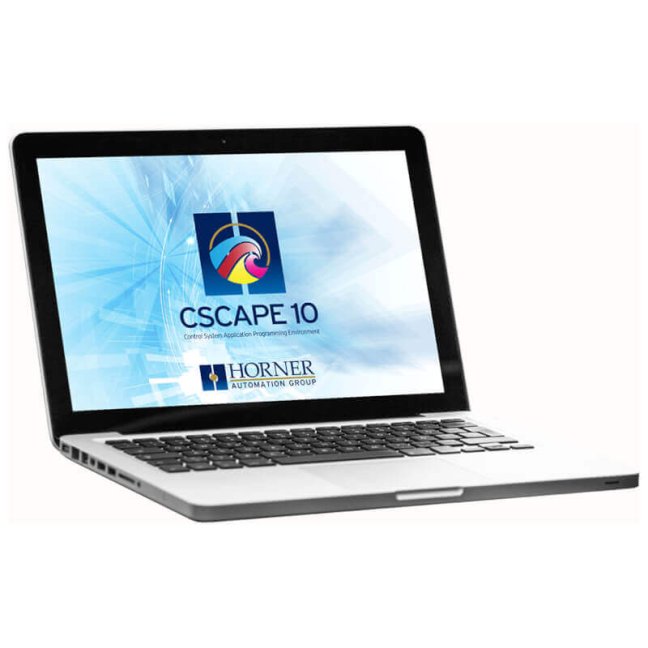


Cscape 10 – application development software for Horner PLC HMI controllers

Free HORNER development environment for PLC program, HMI screens, I/O configuration and communication in one project. FOXON offers help with the first project and training in Liberec.
MoreCode: Cscape10
Free HORNER development environment for PLC program, HMI screens, I/O configuration and communication in one project. FOXON offers help with the first project and training in Liberec.
MoreCode: Cscape10
PLC program and HMI screens in one project. Free of charge.
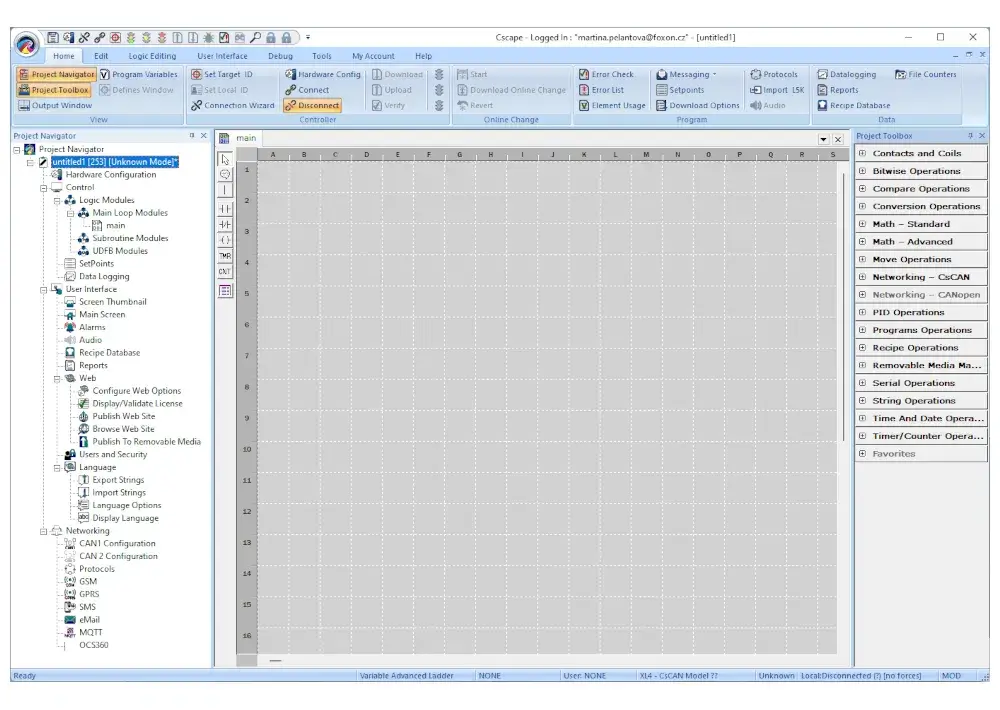
In Cscape you prepare the control of the small machine, operating screens, inputs and outputs as well as communication of the HORNER panel. Logic and HMI use common data, so you use the same values in the program and on the display.
Standard Cscape is free with every HORNER panel. You do not buy a programming license. Additional device specific features such as WebMI, MQTT or extended modes have their own license and firmware terms.
Start your own project.
Download Cscape from the manufacturer, select your panel and go through the first video tutorial. FOXON will help you with a specific task.
Introducing Cscape 10 and CANVAS
The original Horner webinar presents work in Cscape 10 and CANVAS graphics. The advanced graphics of the CANVAS distinguish it from the screens of other lines. English.
Applications in small machines and systems
Pump switching according to time or event
You set the start and stop conditions in the program. Add the pump status, time or set limit to the screen.
Controlling a small machine or fixture
You prepare the work sequence, the piece counter and the service buttons. The operator changes the enabled settings on the panel.
Measurement and simple regulation
You convert the input signal to an operating value, set the limits and establish the necessary logic. The signals must match the I/O device.
Local equipment monitoring
You will display operating values and alarms. You can use trends and data recording according to the equipment of the selected panel.
Device selection and version Cscape
First select the exact panel HORNER. Its display, I/O, firmware and any licenses determine the available features of the project.
| Micro, XL and XL PRIME | Control logic, standard screens, I/O configuration and communication by model. |
|---|---|
| CANVAS | Requires Cscape 10; uses an advanced graphics system with its own objects and options. |
| Existing project | Save a separate backup before opening in the new version. After saving in a newer version, the project may not be openable in the older one. |
First run
- On the Horner website, register or log in and download the corresponding Cscape installer.
- Install the software on a Windows PC. Start a new project and select the exact panel model.
- Select the programming language and configure the necessary I/O. Create simple logic and first screen.
- Set the connection to the panel according to its available ports. After transmission, verify signals, controls and fault response.
PC Requirements
| Software platform | Windows; the manufacturer recommends Windows 10 or later |
|---|---|
| Processor | 2 GHz or faster |
| RAM | Minimum 4 GB, recommended 8 GB |
| Installation space | Approximately 1 GB; additional space for projects and backups |
| Manufacturer account | To download and login; access to licensed extensions according to the manufacturer's terms |
Equipment and cost of the first project
You download Cscape and start preparing the project proposal before the panel is delivered. You can verify the real I/O, the communication and the behavior of the entire technology on the corresponding hardware.
| Standard Cscape | 0 CZK - program PLC and standard screens HMI |
|---|---|
| HORNER panel and interconnection | According to the selected hardware; the software is not a standalone PLC runtime for a regular PC |
| Sensors and controls | According to signals and technology loads |
| Optional features | License and required firmware by panel and project |
| Training and project | Pricing according to the agreed scope |
Training and support for the first project
Training in Liberec
We train individuals and groups in our training room in Liberec. We will agree on the scope and date according to the experience of the participants and their tasks.
Self-study
The original Horner Automation Europe video instructions are used for self-study. Translated titles and annotations explain their content, videos remain in English. Video Tutorials Horner Europe.
We train individuals and groups in Liberec. Prepare the panel type, experience with PLC, and task specification. We will agree on the scope of the training and any help with the program in advance.
First project in Cscape
Connecting the panel to the PC, selecting the hardware, simple logic and the first screen on the example Micro OCS. English.
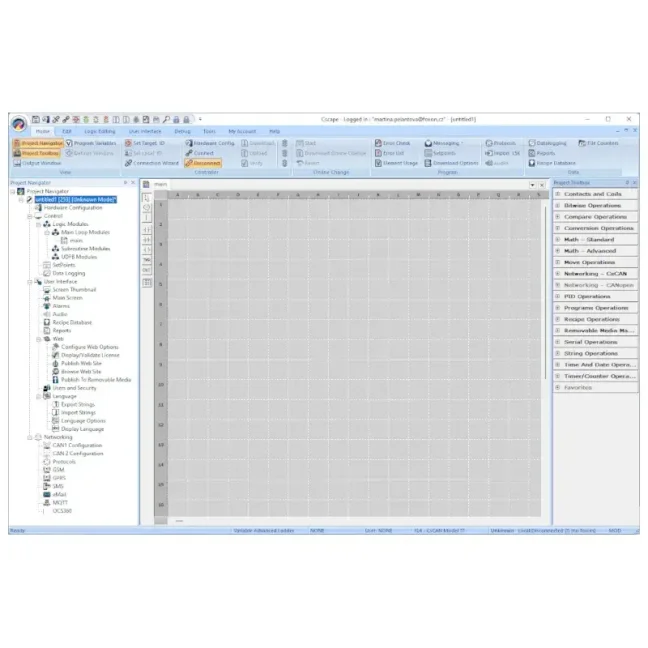
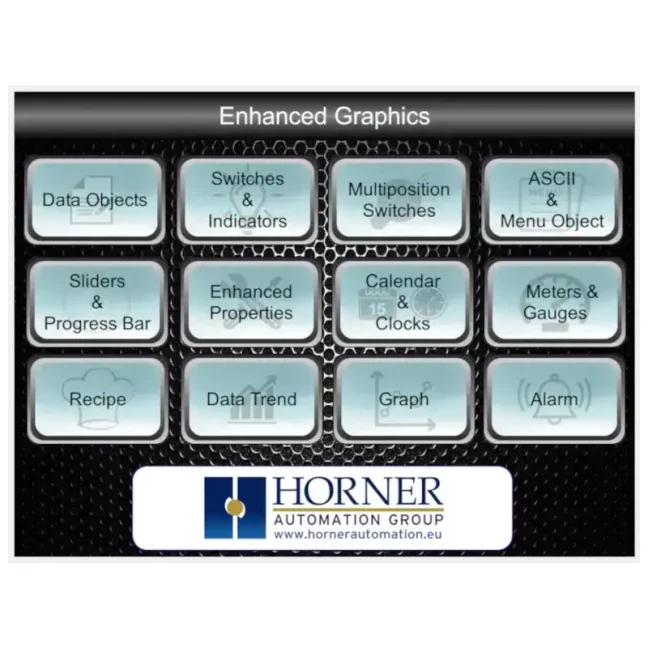
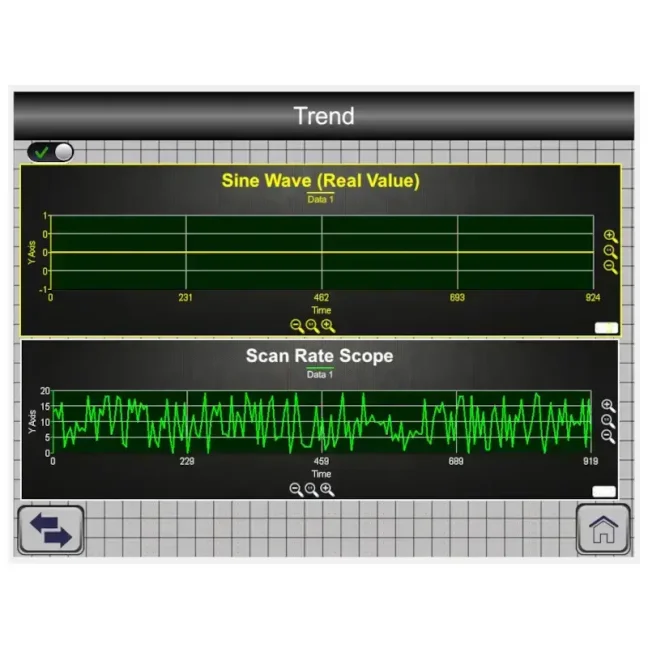
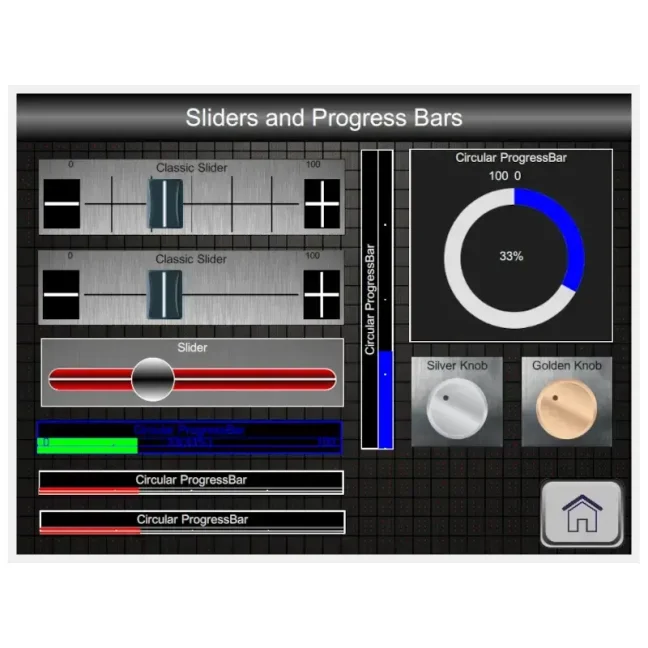
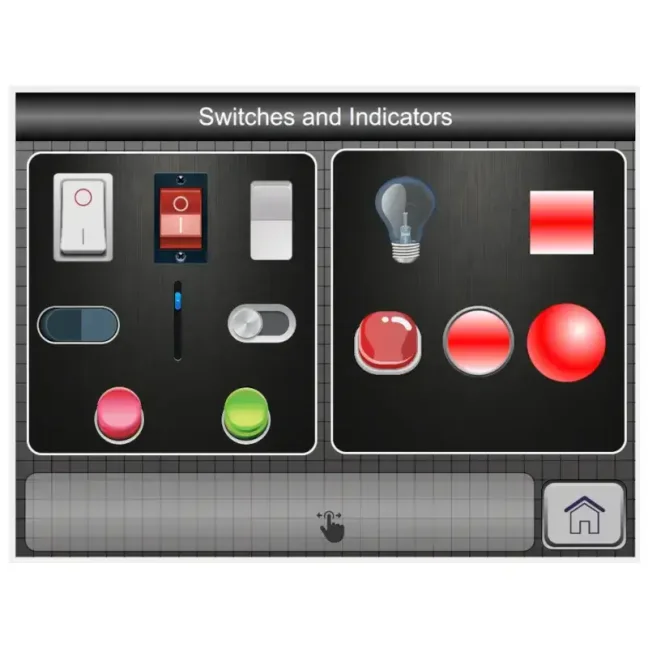
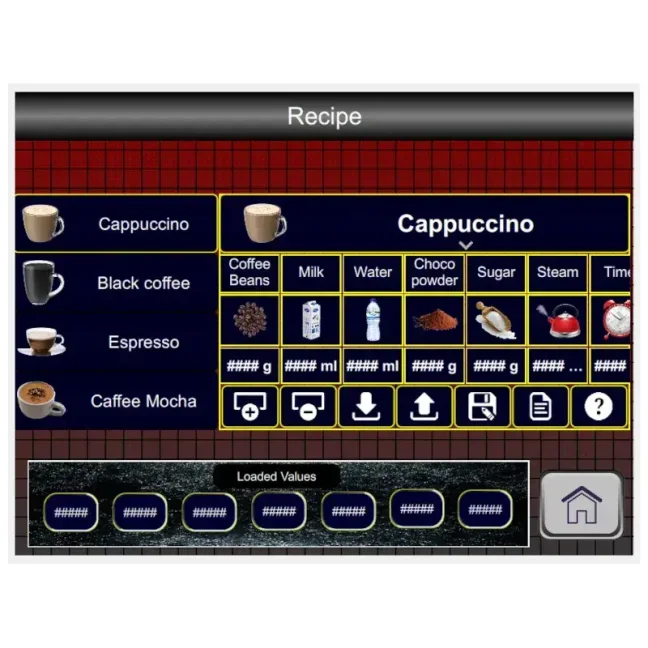
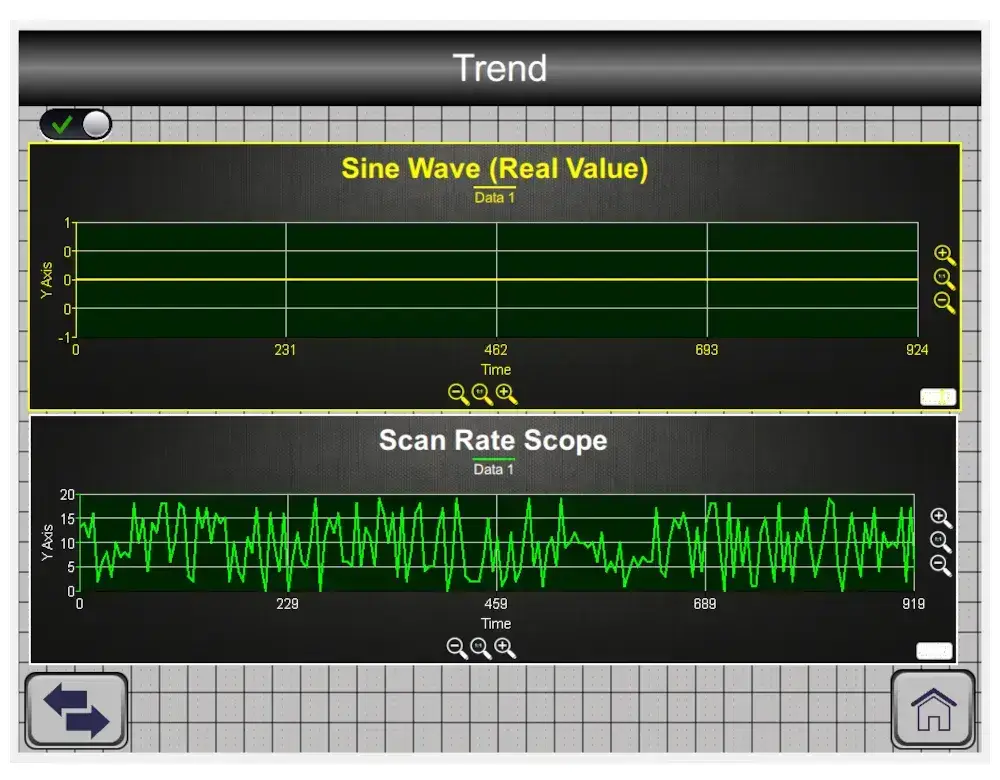
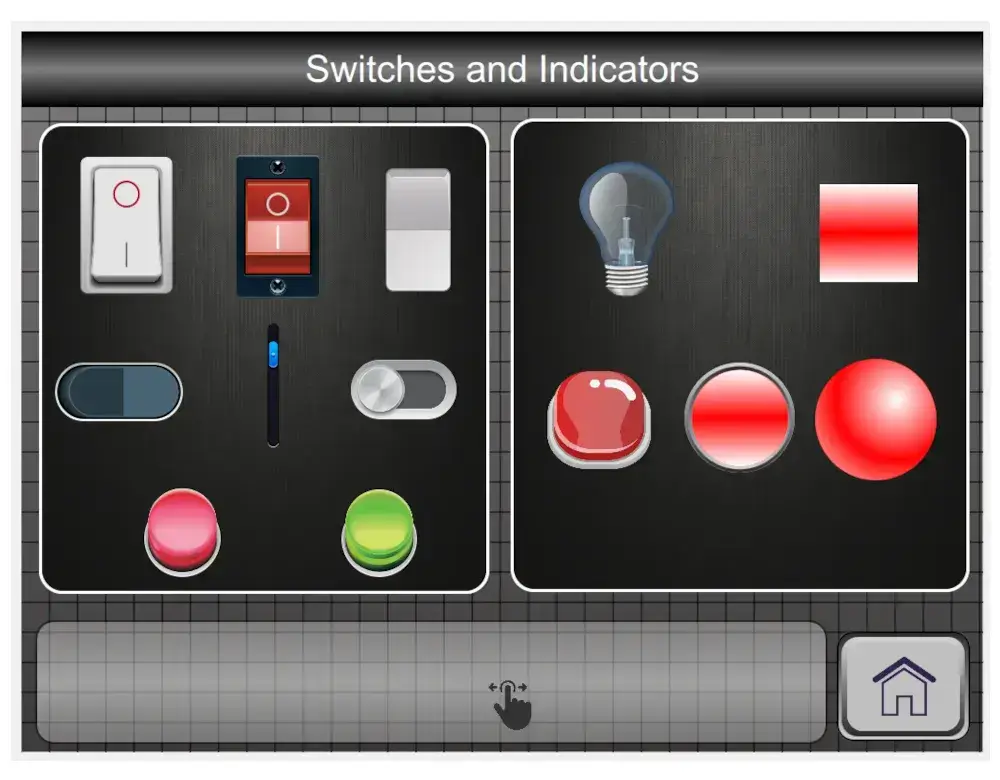
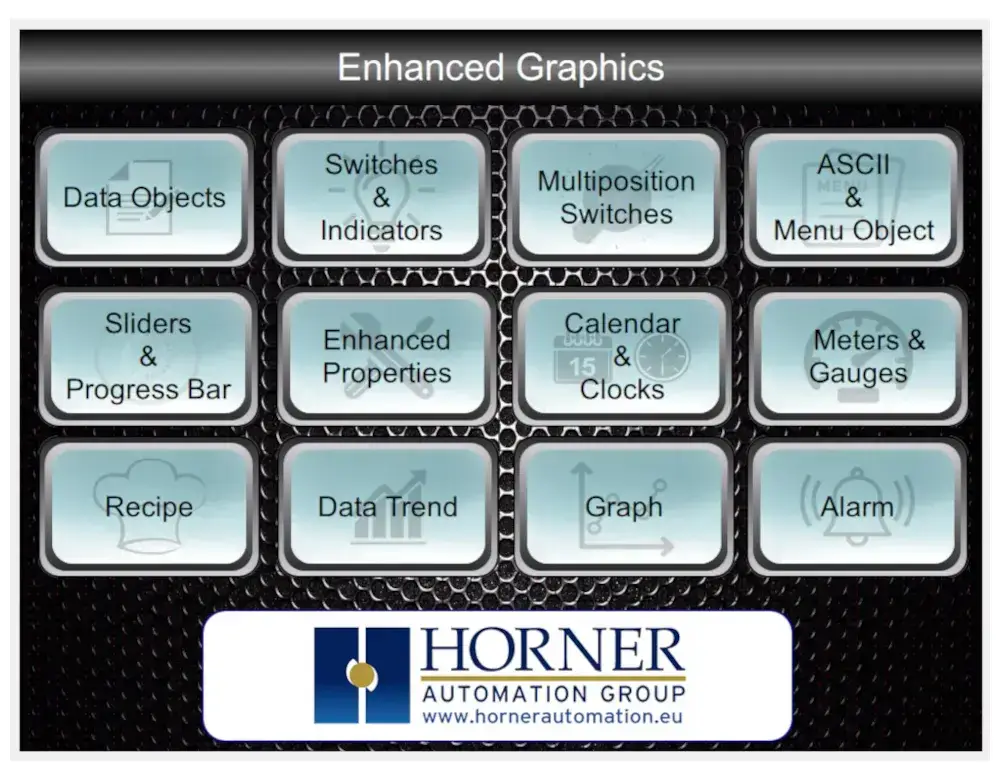
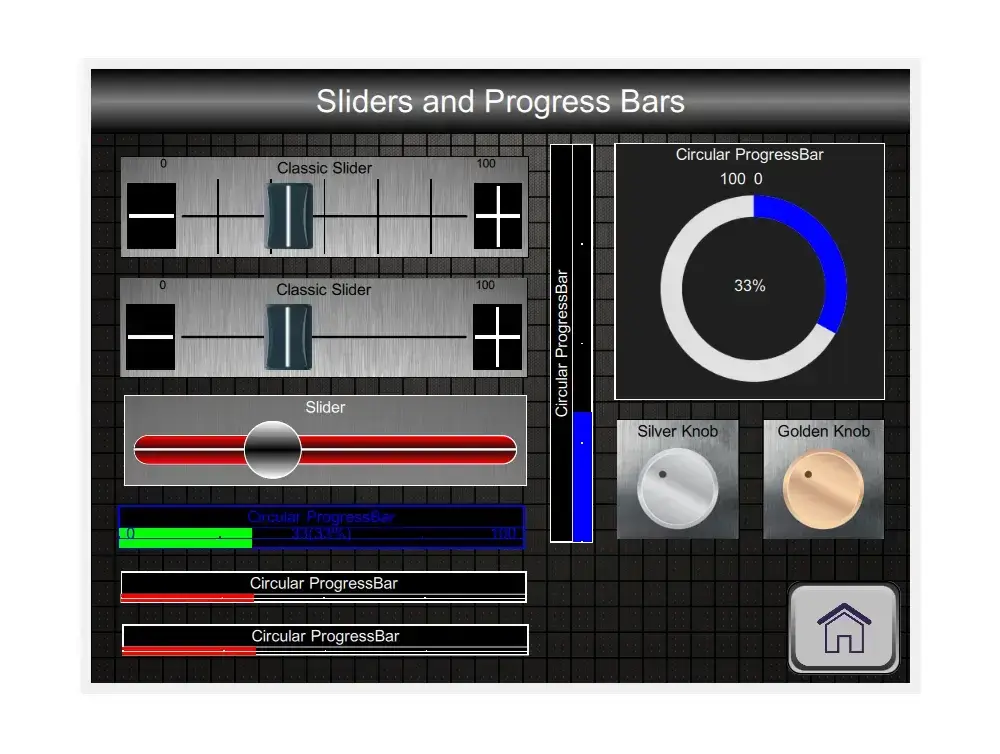
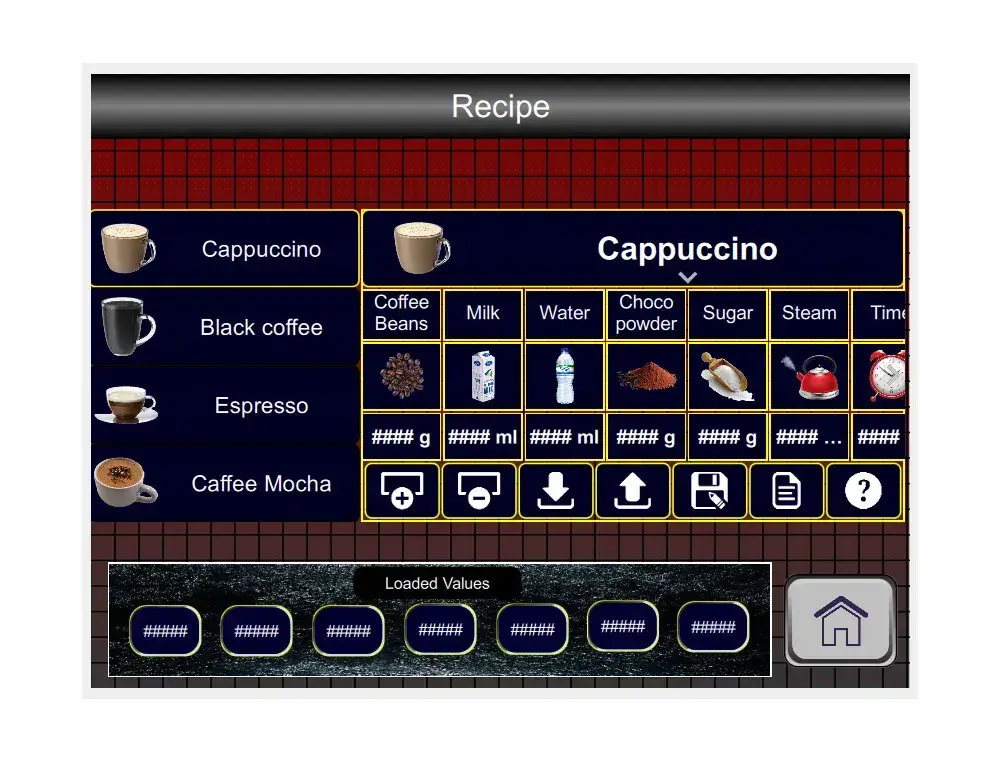
Cscape environment samples
Click to open the original manufacturer's material in a larger view.

Frequently asked questions
Is Cscape really free?
Yes. The standard environment for the PLC program and the standard HMI screens is free. Manufacturer's terms and conditions of registration apply; additional features of the device are licensed separately.
Do I need CANVAS for all new graphic objects?
The advanced graphics system CANVAS is intended for the corresponding device CANVAS. Other panels use their supported standard screens. Select the exact target model when designing.
Will the old project open in Cscape 10?
The newer Cscape allows you to open older projects. Before converting, create a backup and verify the hardware and firmware used. A project saved in a new version may not open in an older one.
Can Cscape run a machine without a HORNER panel?
Cscape is a development environment. To run the program, you need a supported HORNER control system and a corresponding I/O.
Can you help with the first project?
Yes. We will advise on panel selection and connection, train you in Liberec and prepare the project and installation with our own technicians as needed.
Why buy from FOXON
Distributor HORNER
We are a HORNER distributor and will help you choose a new panel, the necessary accessories and any licenses. The standard Cscape is provided free of charge by the manufacturer.
Selection according to your project
We will discuss technology function, signals and communication. We will compare the entry with the HORNER options and select a suitable product.
Technical support and training
We advise on the use of the equipment and train individuals and groups. For self-study, we recommend the manufacturer's instructions.
Solution design and assembly
If necessary, we will design a solution, prepare a project and install the equipment with our own technicians. We will agree on the scope of work according to the technology.
Sample projects with the Czech procedure
Download the selected task and run through it in Cscape. The packages contain unchanged HORNER projects and the Czech FOXON manual for initial orientation.
Switching time schedule
Work with panel clock, time comparison and switching schedule. Basis for permission to run according to schedule.
- Open Simple Time & Date Compare Demo.csp as a project copy.
- In Cscape, verify the set model and list of variables used.
- Go through the time and date comparison conditions. Then open Scheduler Demo.csp and compare the schedule solutions.
- On the test setup, change the timing conditions and monitor the corresponding state variables. Prepare the link to the actual output according to your connection.
Sequential control of small technology
SFC tutorial projects with steps and transitions. They contain an example of a tank and color mixing.
- Open a copy of SFC_Demo.csp. The second example can be found in SFC_Paint.csp.
- In Cscape, verify the target model, I/O and the variables.
- Go through the individual steps and transition conditions. Track which actions are performed in a given step.
- First verify the logic on a separate test set. For your own machine, add the appropriate conditions and link to real signals.
Analog measurement and value conversion
The example for Micro X7 shows the conversion of an input value to a level reading. It will help to understand the scale and calibration of the signal.
- Open a copy of Analog Scaling Example - Micro X7.csp.
- An example is marked for Micro X7. In Cscape, verify the specific variant and the set analog input.
- Review the Ultrasonic input variable and its conversion to Tank_Level_INT / Tank_Level_REAL. Compare the input and resulting values.
- For a different sensor, measurement range or model, adjust the configuration and conversion. Verify the result with a known signal value.
First project and training
Download Cscape for free. If you would like help getting started, send the panel model and a description of your application. We will agree on suitable training or the scope of project support.
Documentation and first steps
Links lead to original materials Horner. The installer and some documents require registration and login.
Software and help
Cscape - current download
Installer and Release Notes. Sign in with a maker account and choose a version for your project.
Open the materialOnline Help Cscape
Project settings, languages, graphics, I/O and communication. Search for the feature and verify your device's support.
Open the materialOverview of functions and CANVAS
Cscape 10 - overview of functions
Brief original brochure for the first orientation in the environment.
Open the materialCscape 10 and CANVAS - presentation
A more detailed presentation of the CANVAS environment and graphics. CANVAS functions do not automatically apply to other panels.
Open the materialVideo tutorials to get started
First project on Micro OCS
Connecting the panel to the PC, selecting the hardware, simple logic and the first screen on the example Micro OCS. English.
Open the materialHorner Europe Library
Additional tutorials by topic and device series.
Open the materialTeaching projects and Czech practices
Switching time schedule
Work with panel clock, time comparison and switching schedule. Basis for permission to run according to schedule.
Sequential control of small technology
SFC tutorial projects with steps and transitions. They contain an example of a tank and color mixing.
Analog measurement and value conversion
The example for Micro X7 shows the conversion of an input value to a level reading. It will help to understand the scale and calibration of the signal.
These are learning projects, not finished programs for any machine. Please verify the target model, firmware, I/O and addresses before uploading in Cscape. Modification required for other panel or wiring. An example of analog measurement is for Micro X7; the other examples use the configuration from the respective video. Work with a copy of the project and a separate test build.
Cscape 10 - functions and requirements
The development environment is common. Available graphics, I/O, communication features and licenses are subject to the target device.
Programming and configuration
| Control logic | Ladder and other languages IEC 61131-3 according to target device and mode |
|---|---|
| HMI screens | Standard graphics or advanced system CANVAS according to series |
| I/O and communication | Configuration of built-in and supported external I/O, ports and protocols |
| Project transfer | Through the available interface of a particular panel |
| Price of standard environment | Free; additional features of the device may require a license |
Requirements and project management
| PC | Windows; 2 GHz, min. 4 GB RAM, recommended 8 GB; approximately 1 GB to install |
|---|---|
| Download | Account on the manufacturer's website |
| Backups | Separate backup before changing Cscape version, firmware or target device |
| Compatibility | Verify exact model, firmware version and licensed features |
VIDEO: Tips and tricks for setting up HORNER PLCs with display, inputs and outputs
HORNER PLCs combine machine control, operator display and inputs/outputs in one device. If you need a compact solution for a smaller machine, part of a production line, a test station or modernization of older equipment, you do not have to source and combine a separate PLC, HMI panel and I/O modules.
The manufacturer’s training videos show how to connect the panel, work in Cscape, set up communication, use WebMI and work with basic inputs and outputs. They are especially useful during initial commissioning, so you do not have to figure everything out by trial and error.

Review: Horner Canvas Series PLC with Integrated HMI – Part 1: PLC
Horner PLCs with integrated HMI are new not only to our e-shop, but also to our market. We asked respected industrial automation specialist Jaroslav Blažek (blaja.cz) to explore all the functions and user-friendliness of these devices. You can find out whether he was satisfied and what it was like working with the Horner units in his review.
Review: How CANbus OCS-I/O Peripherals Work with the Horner Canvas 4 PLC/HMI
External I/O peripherals can be connected to Horner PLCs with HMI—and are often required. Learn how Jaroslav Blažek (blaja.cz) tested connecting an OCS-I/O module with digital and analog inputs/outputs to a Canvas 4 PLC/HMI via the CANbus.
Review: Cscape Software for Horner PLCs with Integrated HMI
For efficient work with Horner panels (PLCs with integrated HMI), you need a reliable and intuitive programming tool. The Cscape software allows configuration of both the PLC and the integrated HMI within a single environment—and it’s free. Once again, we asked specialist Jaroslav Blažek (blaja.cz) to take a closer look at the software. You can find out how the installation and registration went in his review.

Review: Horner Canvas Series PLC with Integrated HMI – Part 2: HMI and Remote Monitoring
Horner PLCs with integrated HMI have not been part of our product range for long, but they are already attracting well-deserved attention. We asked industrial automation expert Jaroslav Blažek (blaja.cz) to take a closer look at them — especially in terms of functionality, intuitive operation, and practical deployment options. Find out how these Horner devices performed and what he has to say about them in the following review.

New on the Market: Touchscreen PLC with Integrated HMI and I/Os from Horner Automation
Are you looking for a compact, powerful and easy-to-integrate solution for machine control or upgrading existing technology? We are pleased to introduce a new addition to our product range: panels from Horner Automation. Their PLCs, which feature an integrated HMI with a touchscreen display and inputs/outputs, are ideal for designers of new machines as well as engineers looking to innovate their companies' production.
Case Study: How the Horner X7 Control Panel Automated Weighing and Dosing
A new fully automated dosing and weighing machine is controlled by a Horner X7 PLC with integrated HMI and I/Os. In this setup, the industrial panel manages recipes, temperature control, and precise weighing of ingredients. At the same time, it collects batch data, eliminates human errors, and ensures consistent food quality. What does it look like in practice?
Highlighted items are mandatory.

HORNER X7 PLC HMI controller with 7″ colour touchscreen, analog / digital inputs and outputs
936,54 EUR Incl. VAT

HORNER X10 PLC HMI controller with 10″ colour touchscreen, analog / digital inputs and outputs
1 363,67 EUR Incl. VAT

HORNER CANVAS 10D PLC HMI controller with 10.1″ colour touchscreen, analog / digital inputs and outputs
1 978,35 EUR Incl. VAT
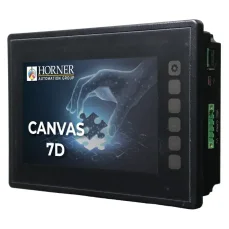
HORNER CANVAS 7D PLC HMI controller with 7″ colour touchscreen, analog / digital inputs and outputs
1 840,41 EUR Incl. VAT

HORNER CANVAS 7 PLC HMI controller with 7″ colour touchscreen, analog / digital inputs and outputs
1 580,26 EUR Incl. VAT

HORNER CANVAS 5 PLC HMI controller with 4.3″ colour touchscreen, analog / digital inputs and outputs
1 161,60 EUR Incl. VAT

HORNER X2 PLC HMI controller with 2.2″ monochrome screen, analog / digital inputs and outputs
335,17 EUR Incl. VAT

HORNER CANVAS 4 PLC HMI controller with 3.5″ colour touchscreen, analog / digital inputs and outputs
1 066,01 EUR Incl. VAT

HORNER X4 PLC HMI controller with 4.3″ colour touchscreen, analog / digital inputs and outputs
561,44 EUR Incl. VAT

WebMI – software for remote monitoring of Horner PLC HMI controllers
96,80 EUR Incl. VAT
Related products10
HORNER X7 PLC HMI controller with 7″ colour touchscreen, analog / digital inputs and outputs
936,54 EUR Incl. VAT
HORNER X10 PLC HMI controller with 10″ colour touchscreen, analog / digital inputs and outputs
1 363,67 EUR Incl. VAT
HORNER CANVAS 10D PLC HMI controller with 10.1″ colour touchscreen, analog / digital inputs and outputs
1 978,35 EUR Incl. VAT
HORNER CANVAS 7D PLC HMI controller with 7″ colour touchscreen, analog / digital inputs and outputs
1 840,41 EUR Incl. VAT
HORNER CANVAS 7 PLC HMI controller with 7″ colour touchscreen, analog / digital inputs and outputs
1 580,26 EUR Incl. VAT
HORNER CANVAS 5 PLC HMI controller with 4.3″ colour touchscreen, analog / digital inputs and outputs
1 161,60 EUR Incl. VAT
HORNER X2 PLC HMI controller with 2.2″ monochrome screen, analog / digital inputs and outputs
335,17 EUR Incl. VAT
HORNER CANVAS 4 PLC HMI controller with 3.5″ colour touchscreen, analog / digital inputs and outputs
1 066,01 EUR Incl. VAT
HORNER X4 PLC HMI controller with 4.3″ colour touchscreen, analog / digital inputs and outputs
561,44 EUR Incl. VAT
WebMI – software for remote monitoring of Horner PLC HMI controllers
96,80 EUR Incl. VAT